
7 ways to save money (and time) with FCF’s wow-inspiring widget.
FCF’s Special Fare Finder makes it easier to find extraordinary flash and anomaly fare deals.
Think of it like life before the air-bridge. To board a plane, folks used to have to run at it with a pole and vault in (remember that?). It was very difficult, and there were many failures. Then the air-bridge was invented and things got waaaay easier.
This is not an alternative to Expedia, Google, or Kayak, which will simply throw a smattering of premium fares or alerts at you only for very particular search parameters for the most part. FCF’s Special Fare Finder gives you only uniquely discounted flash and anomaly fare opportunities.
Deal Filter Section
When you click on our Special Fare Finder page, it looks like this. At the top of the page is the Deal Filter Section with three drop-down filter options: All Destinations, All Airlines, and All Travel Months.
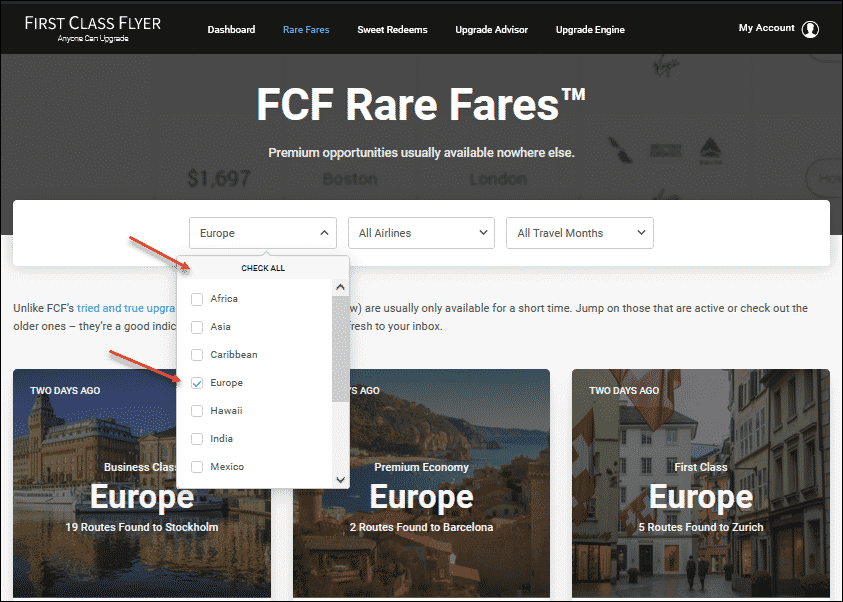
Within each filter, you can check and uncheck all selections, or go through them individually. Go on, give it a try. I’ll wait.
Deal PREVIEW Section
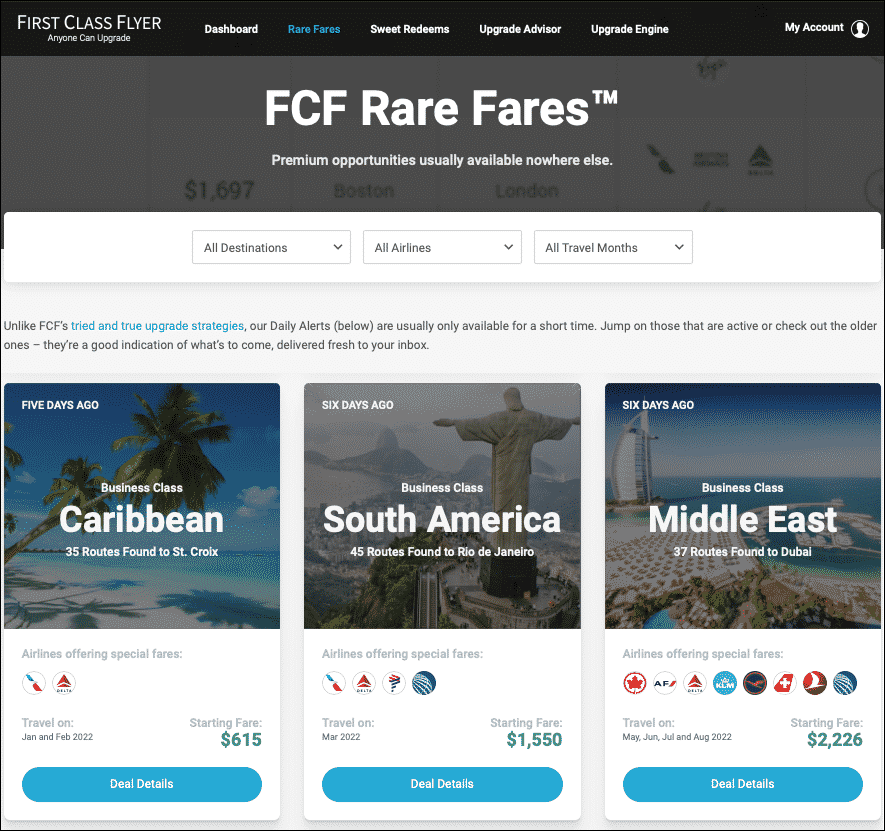
This is where you discover the latest special flash and anomaly fares our global team has discovered — or new fares at the very low end of where they normally hover — to destinations in the US and across the world.
At a glance you’ll see:
- When each deal was posted. This “freshness factor” is important because some don’t last long
- A red expiration indicator, which is our best guess for how long the deal will last
- The cabin class of the deal so you can quickly see what’s relevant to you
- The deal region so you can quickly scan for areas you’re thinking about going
- The number of routes found to the region or destination so you can get a feel for what your chances are. Unless the deal is very targeted, there will often be more routes with special fares available, so just use this as a high-level indicator.
- Airline logos to give you can idea of the range of options
- “Travel on,” which gives you the months the deal is valid for
- “Starting Fare,” which shows the lowest fare within the deal
When you click on a deal that tickles your fancy, it opens up to more information, which is encapsulated in the:
Flash Deal Summary & Details
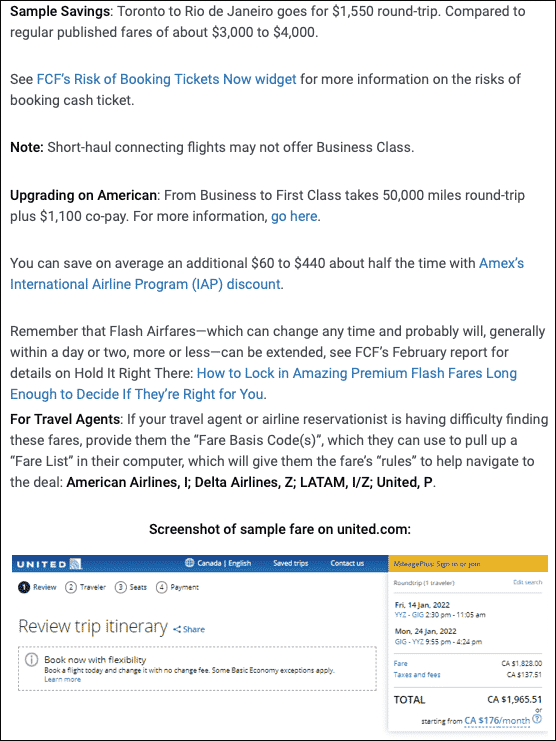
- The route/s
- Sample savings you get with this deal
- Our risk-of-booking widget, which readers have appreciated during lockdown. It shows any risks of booking tickets with airline policy details outlined in detail
- Information on which airlines might offer upgrades, how many miles it would cost to upgrade, and any co-pay amount involved
- Current discount information to see what you can save with current discounts or promo codes, as well as links to quickly take advantage of them
- Airline fare codes that you can give to your travel agent to make booking faster and easier including a screenshot of the sample fare – proof it exists for anyone else you are talking to.
Sample Deal Routes & Availability
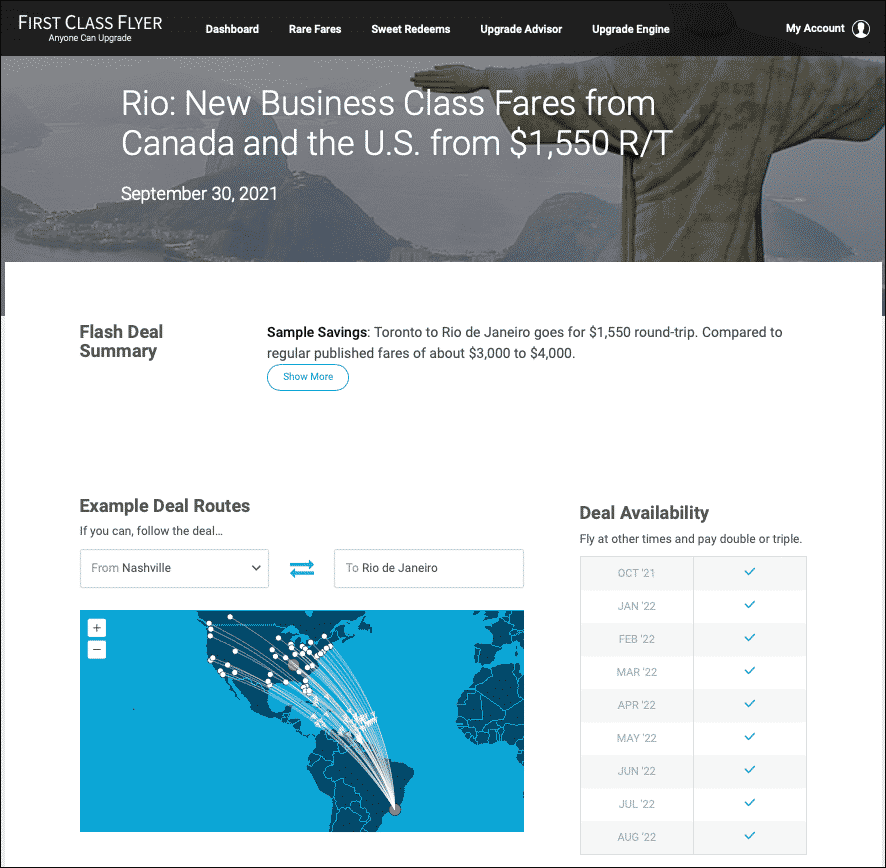
- Select a U.S. departure city from the dropdown menu to drill further
- Check the map to see the routes. Hover over the dots to see the cities.
- The month and year indicator shows when the deal is available based on the route chosen from the drop-down menu.
Sample Best Deals Found

Here’s where the rubber hits the tarmac: how to make the deal your own.
- Click on the Fare arrow to sort by ascending or descending fare prices
- Origin shows the U.S. departure cities involved in the deal, and next to them, the Destination
- See the Airlines involved – which is great for elite earners
Explore Dates & Book

- How to Book, which gives you a walkthrough of what to do on Google Flights. You choose your dates, departure, and return flights then click “Select.” You’ll be linked to the relevant airline or other booking sites such as Orbitz or Expedia for review and payment.
- Get Deal takes you straight to Google Flights, a shortcut for savvy bookers.
Working with Google
The Get Deal link sends you straight to an itinerary already priced on Google Flights, usually at the fare we posted.
What happens when I click “Get Deal” and Google flights does not show the same fare as shown in the daily alert?
This can happen because fares are based on inventory (and airline whims) so there’s no guarantee the fare will still be there on the exact date in our alert. However, you can open the Google Flights calendar to see what dates are available for the fare you are looking for.
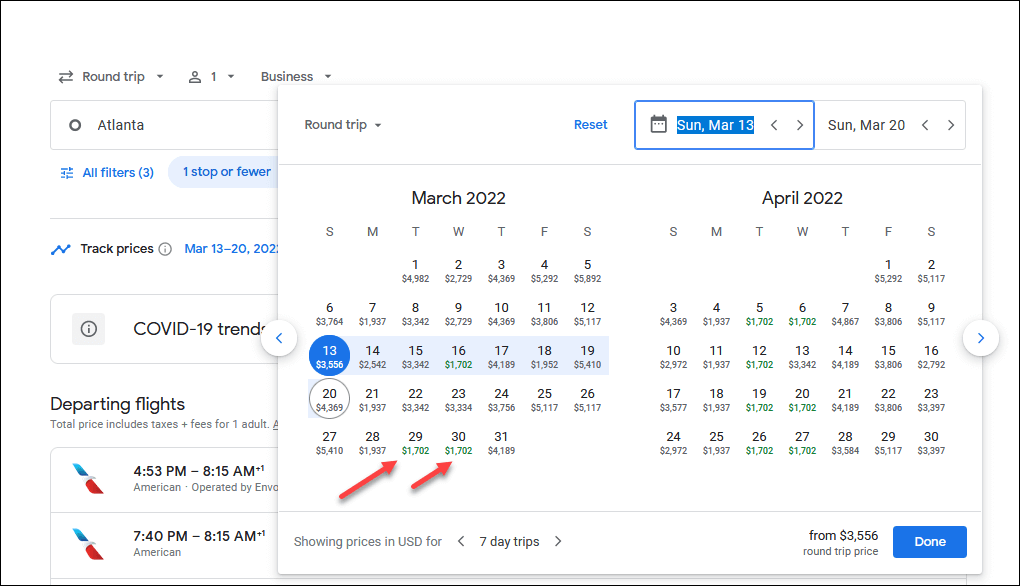
If you still don’t see the fare, try changing your outbound or return date one day at a time, or even advance the calendar to the next or previous month if you are very flexible. If the fare is still not there, it may have been a flash fare and it’s likely gone.
There you have it. Let us know how our Special Fare Finder can be better, and how you score!
7 ways to save money (and time) with FCF’s wow-inspiring widget.
FCF’s Special Fare Finder makes it easier to find extraordinary flash and anomaly fare deals.
Think of it like life before the air-bridge. To board a plane, folks used to have to run at it with a pole and vault in (remember that?). It was very difficult, and there were many failures. Then the air-bridge was invented and things got waaaay easier.
This is not an alternative to Expedia, Google, or Kayak, which will simply throw a smattering of premium fares or alerts at you only for very particular search parameters for the most part. FCF’s Special Fare Finder gives you only uniquely discounted flash and anomaly fare opportunities.
Deal Filter Section
When you click on our Special Fare Finder page, it looks like this. At the top of the page is the Deal Filter Section with three drop-down filter options: All Destinations, All Airlines, and All Travel Months.
Within each filter, you can check and uncheck all selections, or go through them individually. Go on, give it a try. I’ll wait.
Deal PREVIEW Section